Batch convert images in your browser without uploading
By Altaf Ahmed. Written on . Posted in Tutorials.
Most online image converters work the same way: you upload your files, a server converts them, and you download the results. For a folder of holiday photos that's merely slow. For scanned IDs, medical images or client work, it means handing your files to a server you know nothing about.
Modern browsers can do the conversion themselves. Here's how that works, and how to check for yourself that nothing leaves your device.
How in-browser conversion works
- Reading. When you drop files onto the page, the browser's File API gives the page access to them locally. Nothing is transmitted.
- Decoding. The browser decodes each image with its built-in decoders, the same ones it uses to display images on web pages. For formats browsers can't read natively, such as HEIC, the page uses a decoder written in JavaScript and WebAssembly.
- Re-encoding. The image is drawn onto an off-screen canvas and exported in the target format with the canvas
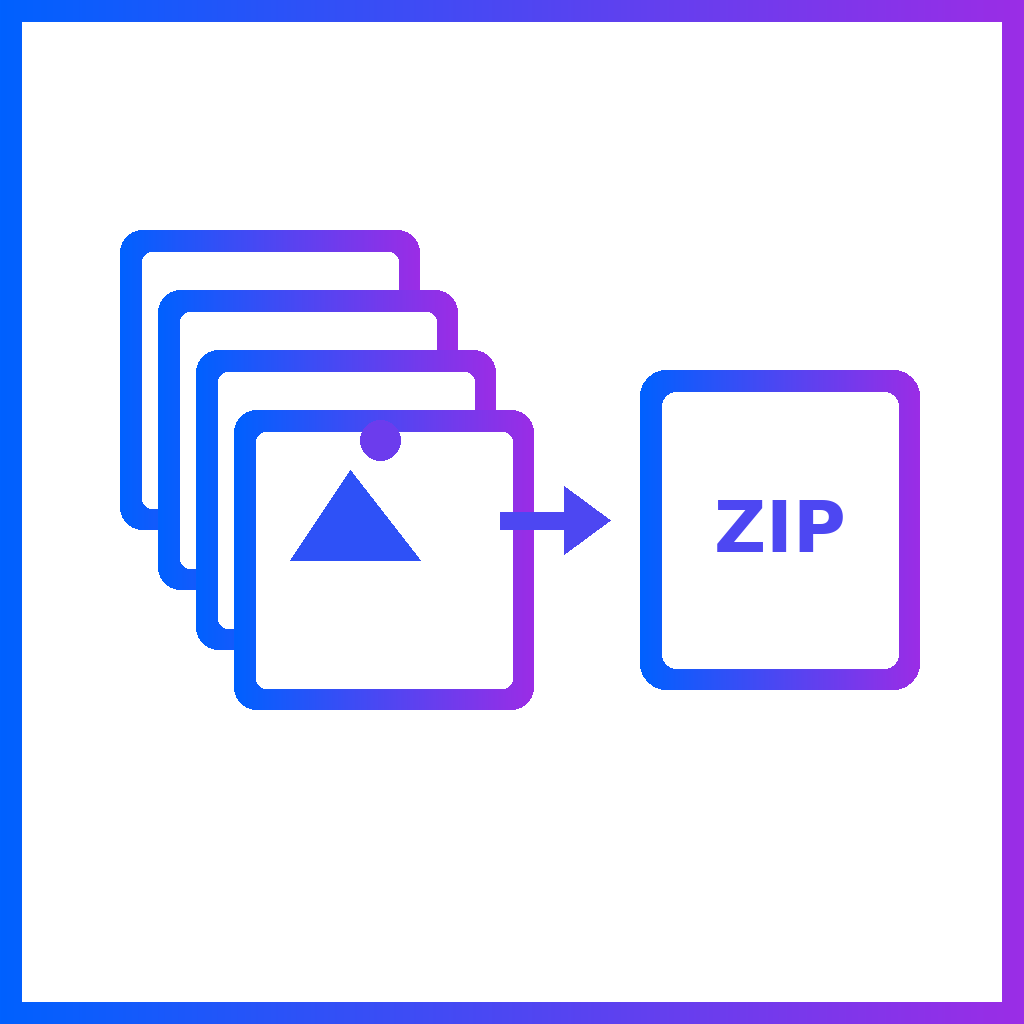
toBlob()method, at the quality you chose. - Packaging. For batches, the converted files are bundled into a ZIP in memory, so you download one file instead of dozens.
How to check that nothing is uploaded
You don't have to take anyone's word for it:
- Watch the Network tab. Open your browser's developer tools (F12), switch to Network, then convert a batch. You'll see no request carrying your images.
- Go offline. Load the converter, turn off Wi-Fi, then convert. A tool that works offline can't be sending your files anywhere.
Our tools that work entirely in your browser
Each of these accepts multiple files and downloads the results as one ZIP:
- JPG to PNG and PNG to JPG
- Image to WebP and WebP to PNG
- HEIC to JPG
- BMP to PNG and TIFF to JPG
- EXIF Remover and Image Watermarker
Some conversions need software that doesn't run in a browser, such as encoding AVIF or reading PSD and EPS files. Those tools send the file to our server, convert it, and delete it straight away.
Trade-offs to know about
- Metadata is dropped. Canvas exports don't carry over EXIF data such as the camera model, capture date or GPS location. That's good for privacy when sharing, but keep your originals if you rely on that information.
- Transparency needs a decision when converting to JPG. JPG has no transparent pixels, so PNG to JPG fills transparent areas with a colour you choose (white by default).
- Very large batches use memory. Everything happens in your browser's memory, so hundreds of full-resolution photos at once can slow down an older device. Converting in groups of 50 or so is smoother.
- Your device does the work. Conversion speed depends on your device rather than a server, so an older phone is slower than a laptop. There's no upload or download wait, though, which on a slow connection often makes local conversion faster overall.
Want to know which format to convert to? Our guide to image compression ratios covers when each one makes sense.