
How to merge PDF files without Adobe Acrobat
By Altaf Ahmed. Written on . Posted in Tutorials.
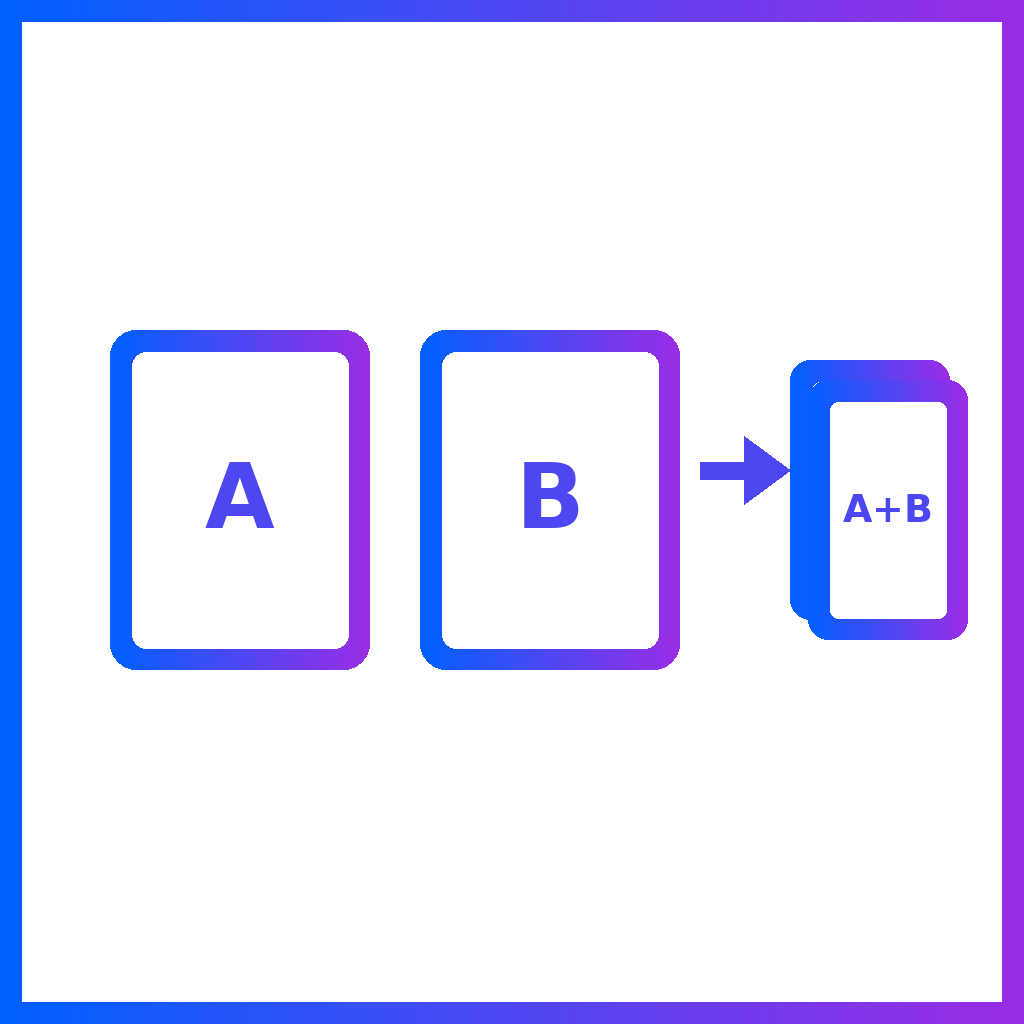
Combining PDFs is one of the most common document tasks, and one of the most confusing, because the free Adobe Acrobat Reader app can open PDFs but can't combine them. Combining files is an Acrobat Pro feature, and Adobe's online tool works by uploading your files to Adobe. You don't need either. Here are four free ways to do it.
1. In your browser, without uploading anything
Our Merge PDF tool combines files inside your browser using the pdf-lib library. The PDFs are read and joined on your own device, so they're never sent to a server, which matters for contracts, payslips and anything else confidential.
- Open Merge PDF and drop in two or more PDFs.
- Drag the rows into the order you want the pages to appear.
- Click Merge PDFs and download the combined file.
2. On a Mac, with Preview
- Open the first PDF in Preview.
- Choose View → Thumbnails to show the page sidebar.
- Drag the other PDF files from Finder into the sidebar, dropping them where their pages should go.
- Choose File → Export as PDF to save the combined document under a new name.
Windows has no built-in equivalent, which is why a browser tool is usually the quickest option there.
3. From the command line with qpdf
qpdf is free, open source, and available on Linux, macOS (via Homebrew) and Windows. It copies pages without re-rendering them, so nothing is recompressed:
qpdf --empty --pages first.pdf second.pdf third.pdf -- combined.pdfYou can also take page ranges from each file, for example only pages 1–3 of the first document:
qpdf --empty --pages first.pdf 1-3 second.pdf -- combined.pdf4. From the command line with Ghostscript
gs -dBATCH -dNOPAUSE -sDEVICE=pdfwrite -sOutputFile=combined.pdf first.pdf second.pdfThis works too, but Ghostscript rewrites the whole document rather than copying pages as they are, which can change image quality and file size. Prefer qpdf when you just want the files joined.
Things to know before you merge
- Password-protected PDFs have to be unlocked first. If you know the password, Unlock PDF removes it.
- Bookmarks (the outline panel) aren't carried over by most merge tools, including ours. The pages themselves come through intact.
- Fillable forms may not stay fillable after merging. If the form is already filled in, flatten it first so the answers become part of the page.
- Mixed page sizes are fine. A4 and Letter pages can sit in the same file.
- The merged file is roughly the sum of its parts. If it's too big to email, run it through Compress PDF afterwards.
Need the reverse? Split PDF breaks one document into several, and Reorder PDF Pages rearranges pages within a file.